


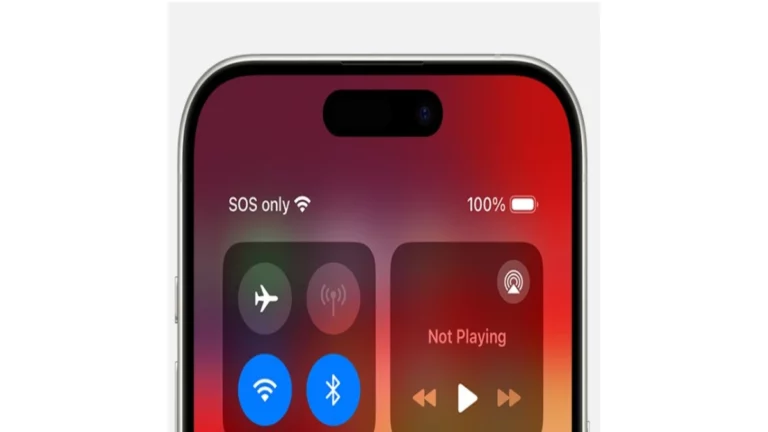
Safety is important. We want to feel secure. Because of this, our phones do more than just call and text. They also help us in emergencies. The iPhone has a crucial feature for safety. This feature is sos on iphone. Essentially, it is a way to call for help very quickly. You do not need to unlock your phone. You do not need to search for a number. Truly, SOS on iPhone is your immediate line to emergency services.
Activating the Lifeline – How to Trigger SOS on iPhone
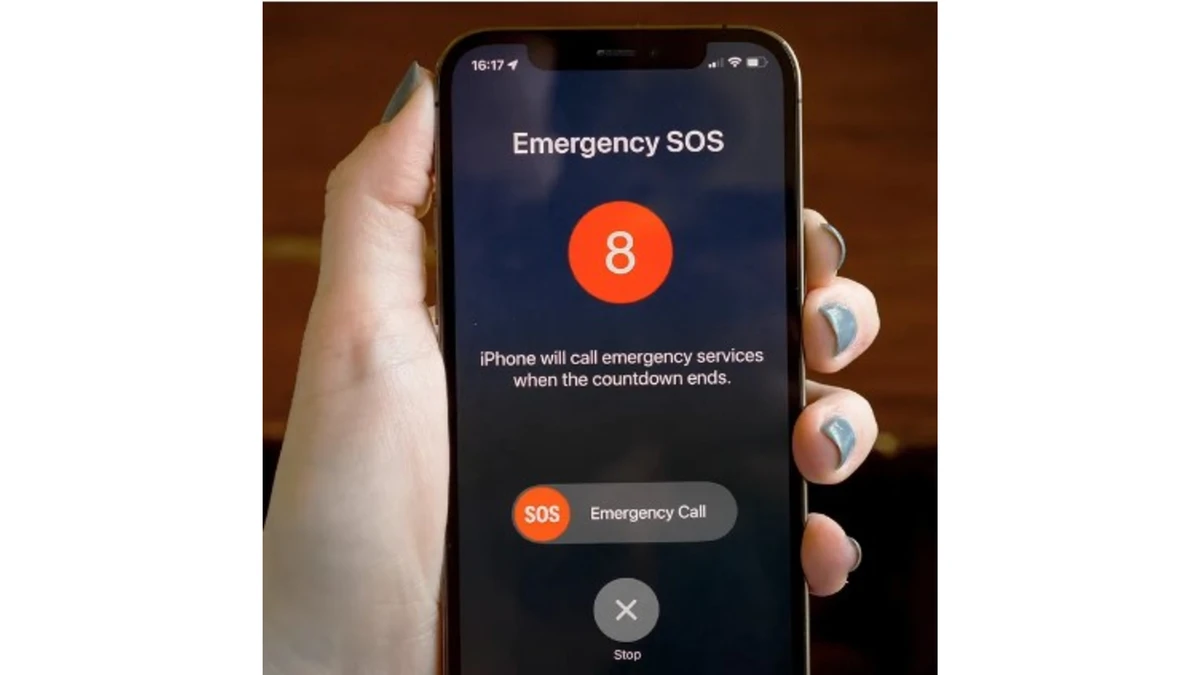
The SOS on iPhone feature works slightly differently depending on your phone model. However, the goal is the same. The phone must call emergency services immediately. Furthermore, it must tell your emergency contacts you need help. Consequently, Apple designed simple ways to activate it, even if you are in a panic. This is why you should learn both methods.
Activation Methods: Different Phones, Same Safety
You can activate sos on iphone using buttons. Nevertheless, the exact combination varies by the model of your phone. Therefore, know which method works for your device.
- iPhone 8 and Later (Including iPhone SE 2nd Gen and newer):
- Press and hold two buttons. Specifically, hold the side button and either volume button at the same time.
- Then, an Emergency SOS slider appears on the screen.
- Drag the Emergency SOS slider to the right. Immediately, your iPhone calls emergency services.
- Alternatively, you can keep holding the buttons. After the countdown ends, the phone calls automatically.
- iPhone 7 and Earlier:
- Press the side or top button quickly. Press it five times in a row.
- Next, the Emergency SOS slider appears on the screen.
- Drag the Emergency SOS slider to call emergency services.
Clearly, both methods make calling easy.
Silence is Safety: The Automatic Call Feature
Significantly, you can adjust the settings for the call. On newer iPhones, you can set the phone to call automatically. Thus, you skip the slider step.
- You go to Settings.
- You find the Emergency SOS section.
- Turn on the “Call with Hold and Release” option. Now, the phone starts a loud countdown.
- Keep holding the buttons. Then, the call places automatically when the countdown finishes.
This is important if you cannot look at the screen.
Common Causes for the SOS Loop
Occasionally, your iPhone might get stuck showing only the sos on iphone status. This happens for a few simple reasons. Here are a few possible reasons your iPhone might get stuck on SOS:
- Accidental Activation: You accidentally held the buttons. Specifically, you pressed and held the side button and a volume button together for two seconds. This brings up the Emergency SOS slider screen.
- Software Problem: Your iPhone runs into a temporary software glitch. Therefore, the operating system cannot connect properly.
- Network Errors: Your network settings might be incorrect. For instance, a change in carrier data causes the issue.
- Wi-Fi Connection Failure: You have temporary Wi-Fi problems. Consequently, the phone cannot find a data path easily.
- Security Bypass (Jailbreaking): You tried to bypass your iPhone’s built-in security. This action, known as jailbreaking, often creates system instability.
Indeed, these simple issues can cause the phone to get stuck.
What Happens After You Call Emergency Services?
The SOS on iPhone feature does much more than just place a call. In fact, two key things happen after you hang up.
- Location Sharing with Contacts: The iPhone alerts your emergency contacts. It sends them a text message. Specifically, the message says you called emergency services. It also shares your current location. Moreover, if your location changes, the iPhone sends an update. This way, your contacts know exactly where you are for a certain time. The phone stops sending updates after a short time.
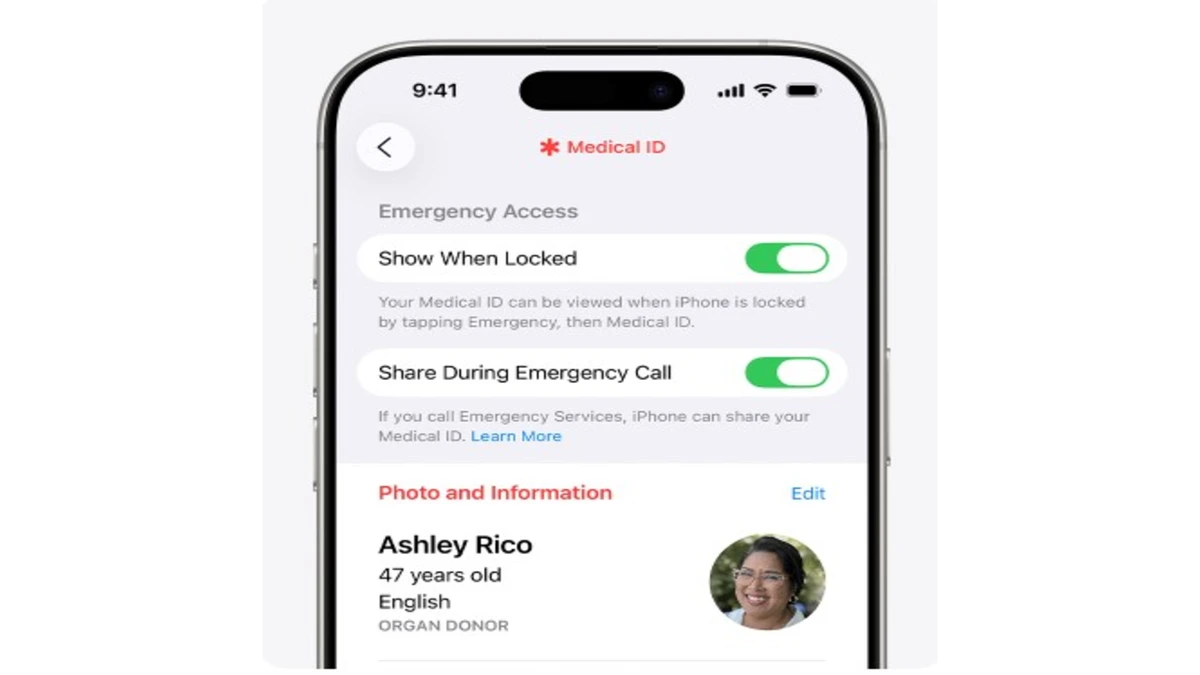
- Medical ID Display: The iPhone displays your Medical ID. This happens after you complete the SOS call. The Medical ID shows vital information. For example, it lists allergies, medical conditions, and who to contact. Emergency responders can access this information. Therefore, having a current Medical ID is very helpful.
Truly, this chain of events provides crucial support.
Also read:
- Twitgoo: Your Ultimate Guide to Technology
- Comcast.Net Email Login: How To Access Your Comcast Email
- Spotify Web Player: Your Browser is Your Jukebox
- How Much is Youtube Premium? A Quick and Short Review
- The Significance of Business Impact Analysis in Cybersecurity
Setting Up Your Emergency Contacts and Medical ID
You must set up your contacts and ID beforehand. Otherwise, the feature is less effective.
- Setting Contacts: Go to the Health app on your iPhone. Tap your profile picture. Then, tap “Medical ID.” Scroll down and tap “Add Emergency Contact.” Select people from your contacts. Finally, choose their relationship to you.
- Filling Medical Details: Fill in all relevant health information in the Medical ID section. This includes blood type, medications, and conditions. Also, turn on the option to “Show When Locked.” This makes the information available to first responders.
Consequently, this preparation maximizes your safety.
Special SOS Features: International Travel and Satellite
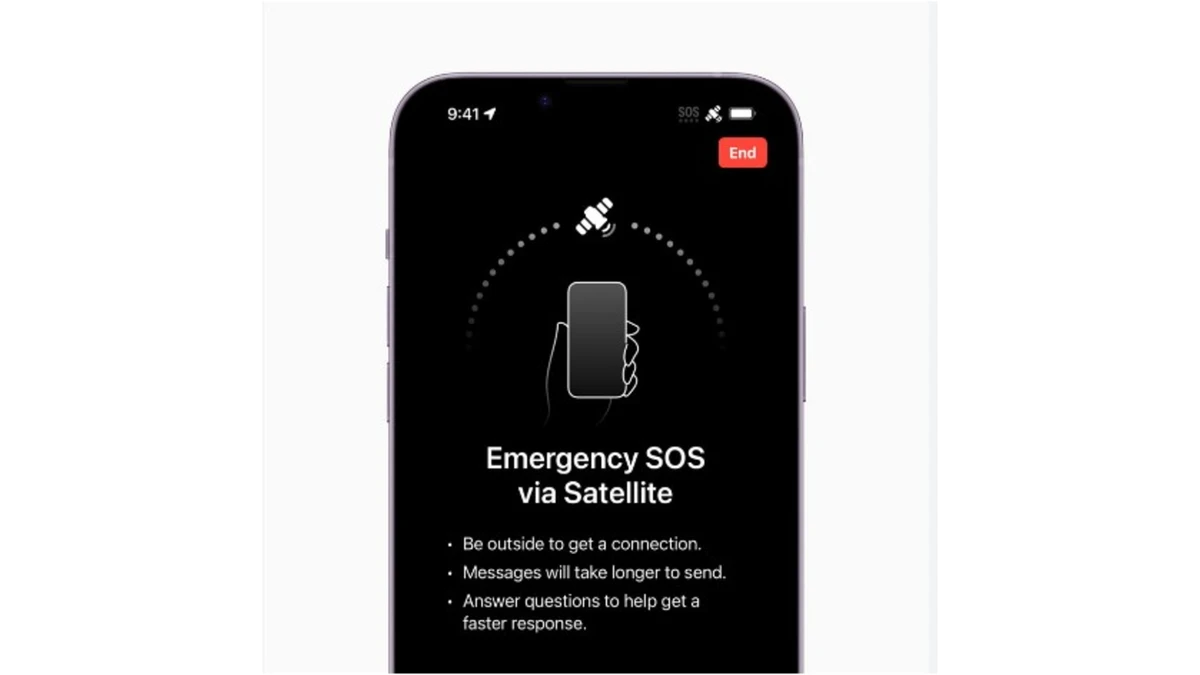
The SOS on the iPhone system is globally aware. Additionally, it uses advanced technology in some situations.
- International SOS: If you travel abroad, the sos on iphone feature is still useful. Specifically, it works in many countries and regions. When you use it, the phone automatically calls the local emergency number. You do not need to know the specific number. Hence, this provides a safety net worldwide.
- Emergency SOS via Satellite: Furthermore, some new iPhone models offer a satellite feature. This is for when you have no cellular service and no Wi-Fi. The phone helps you connect to a satellite. Then, it sends a text message to emergency services. However, this feature has limitations. You must be outdoors and have a clear view of the sky.
Clearly, the feature is highly versatile.
Fixing the Loop: Troubleshooting sos only on iphone how to fix
Occasionally, an iPhone gets stuck showing only the sos on iphone status. Consequently, you cannot use your device until you fix it. This is why you need a clear action plan. Here is what you should do:
Force Restart Your iPhone
The easiest fix is often a restart. Specifically, a force restart often gets you out of SOS mode. A simple power cycle is not enough.
- iPhone 8 and Later (Including iPhone SE 2nd Gen and newer):
- Press and quickly release the Volume Up button.
- Next, press and quickly release the Volume Down button.
- Then, press and hold the side button.
- Keep holding the side button. Finally, release it when the Apple logo appears.
If you use an older iPhone model, contact an expert for help.
Checking and Resetting Network Connections
If your phone is still stuck in SOS mode, check your connections. You might need to reset your network settings.
- Check Cellular Network:
- Open Settings. Go to Cellular (or Mobile Data).
- Check your connection status. If Cellular Data is off, turn it on.
- Check Wi-Fi Connection:
- Open Settings. Go to Wi-Fi.
- Make sure Wi-Fi is turned on. If not, select a network and enter your passcode.
- Toggle Airplane Mode:
- Open Settings. Go to Airplane Mode.
- Turn Airplane Mode on. Wait a few seconds.
- Turn it off again. This simple step may reset your network connections.
- Reset Network Settings:
- If the issue persists, reset your network settings. Be aware, this erases all Wi-Fi passwords and cellular settings.
- Open Settings. Go to General. Then go to Transfer or Reset iPhone.
- Tap Reset. Then, tap Reset Network Settings.
- Enter your passcode and confirm.
Software Updates and Recovery Mode for sos on iphone
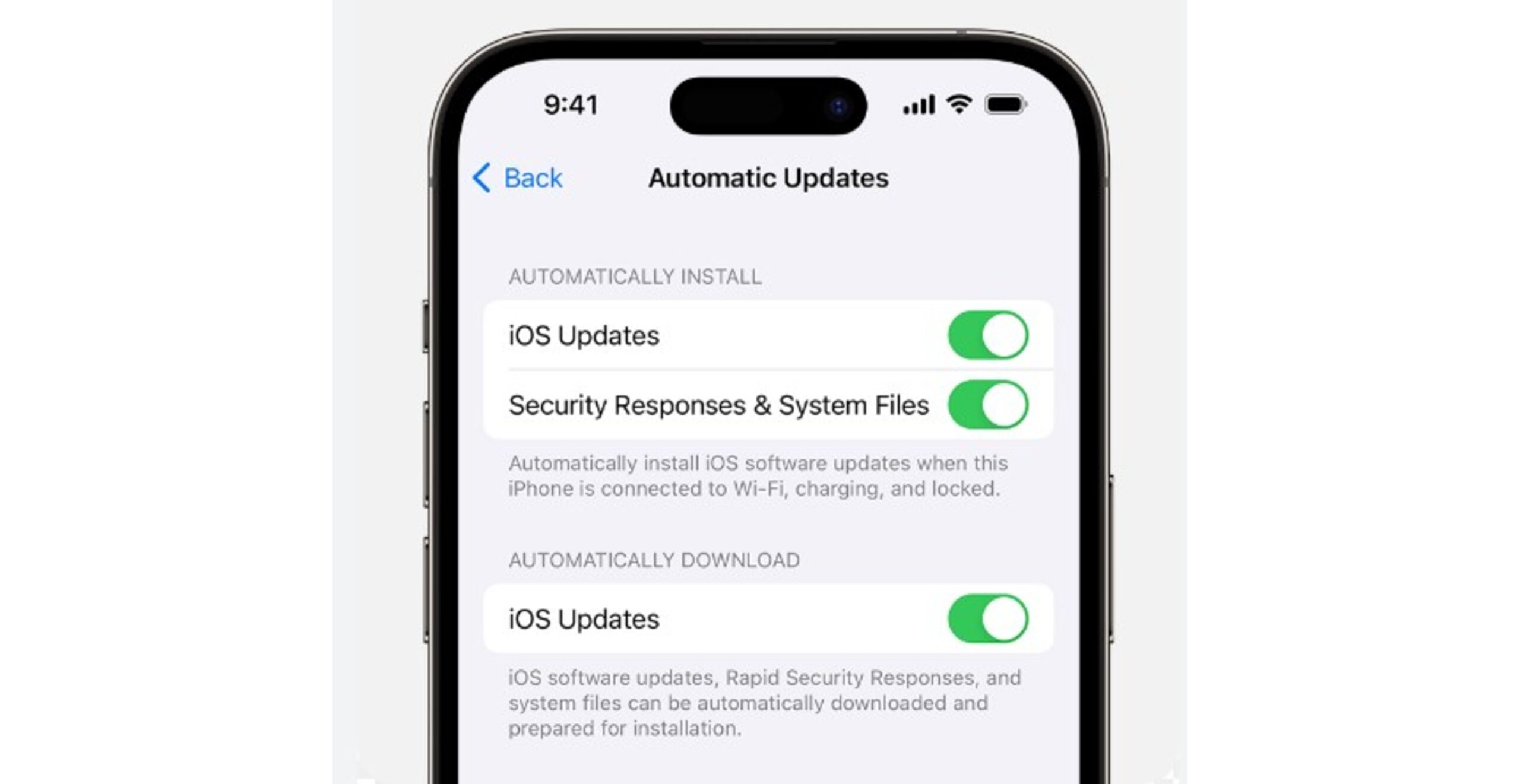
Software issues can also cause this problem. Therefore, update your software or use Recovery Mode.
- Update Your Software:
- Open Settings. Go to General. Then go to Software Update.
- If an update is available, tap Download and Install.
- Try Recovery Mode (Last Resort):
- Connect your iPhone to your computer. Use a charging cable.
- To put your iPhone in Recovery Mode (iPhone 8 or later): Press and quickly release Volume Up. Press and quickly release Volume Down. Then, press and hold the Side button.
- Keep holding the button. Release it when you see the Recovery Mode screen on your phone.
- On your computer, look for your iPhone in Finder or iTunes. Select Restore when prompted.
Removing and Reinserting Your SIM Card
A simple SIM card issue can also cause the SOS lock. Therefore, reinserting the SIM card might fix it.
- Turn off your iPhone.
- Locate the SIM tray. It is usually on the right side.
- Insert the SIM eject tool or a paperclip into the small hole. Gently push until the tray pops out.
- Remove the SIM card. Check it for damage.
- Reinsert the SIM card correctly. Push the tray back in.
- Turn on your iPhone. Finally, check if the issue is resolved. If not, contact your carrier.
Truly, knowing sos only on iphone how to fix can save you stress.
Conclusion: Relying on SOS on iPhone
The sos on iphone feature is a modern safety essential. It is easy to use and highly effective. It places the emergency call quickly. Furthermore, it sends your location to people who can help. Therefore, set up your emergency contacts today. Know the buttons to press. Truly, the simple design of SOS on iPhone provides peace of mind. Remember, this powerful feature is always ready to protect you.
To Get More Updates, Click Here